
Guide · Aug 14, 2026
How to create Mac software tutorials without manual screenshots
A useful software tutorial needs evidence from the real interface, but collecting that evidence should not interrupt every action in the workflow.
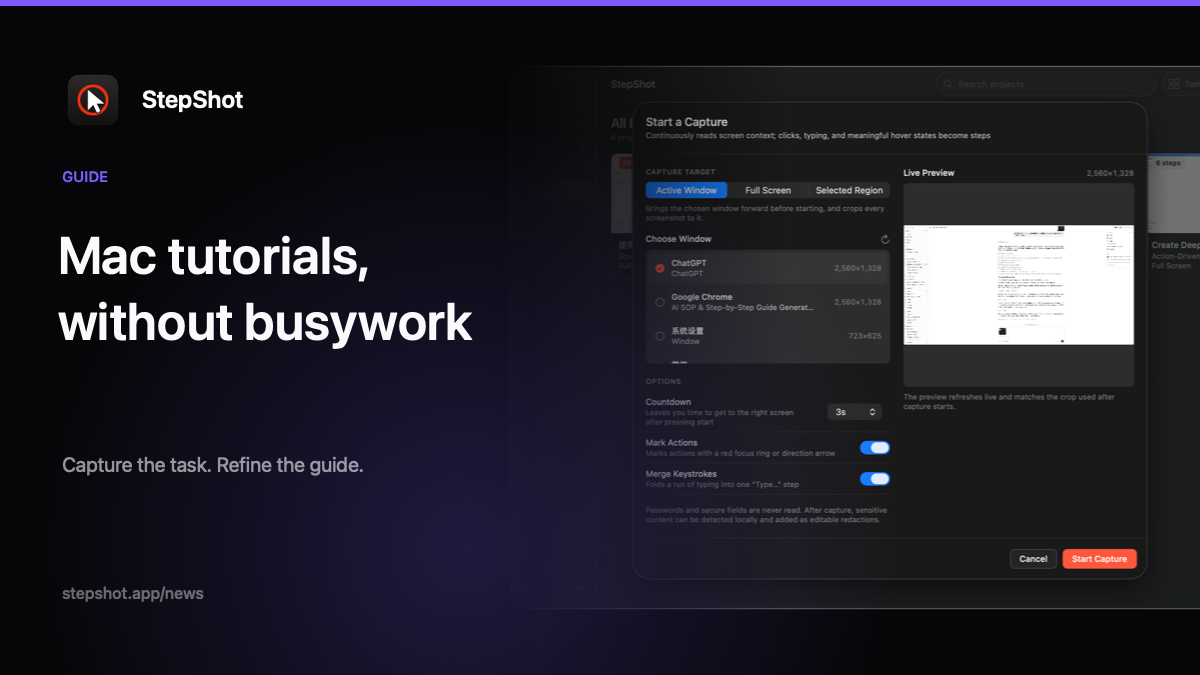
Start with the task, not the screenshots
The slowest way to create a Mac software tutorial is to treat every screenshot as a separate production job. You perform one action, stop, capture the screen, crop the image, rename the file, return to the app and repeat. By the time you write the instructions, the flow that made the task understandable has been split across a folder of disconnected images.
A better process begins with a successful run of the task. Define a clear starting state and a result the reader can verify, then complete the workflow at a normal pace. A capture tool can preserve the visual context and organize meaningful actions into a first draft. The author can spend review time on accuracy rather than on collecting files.
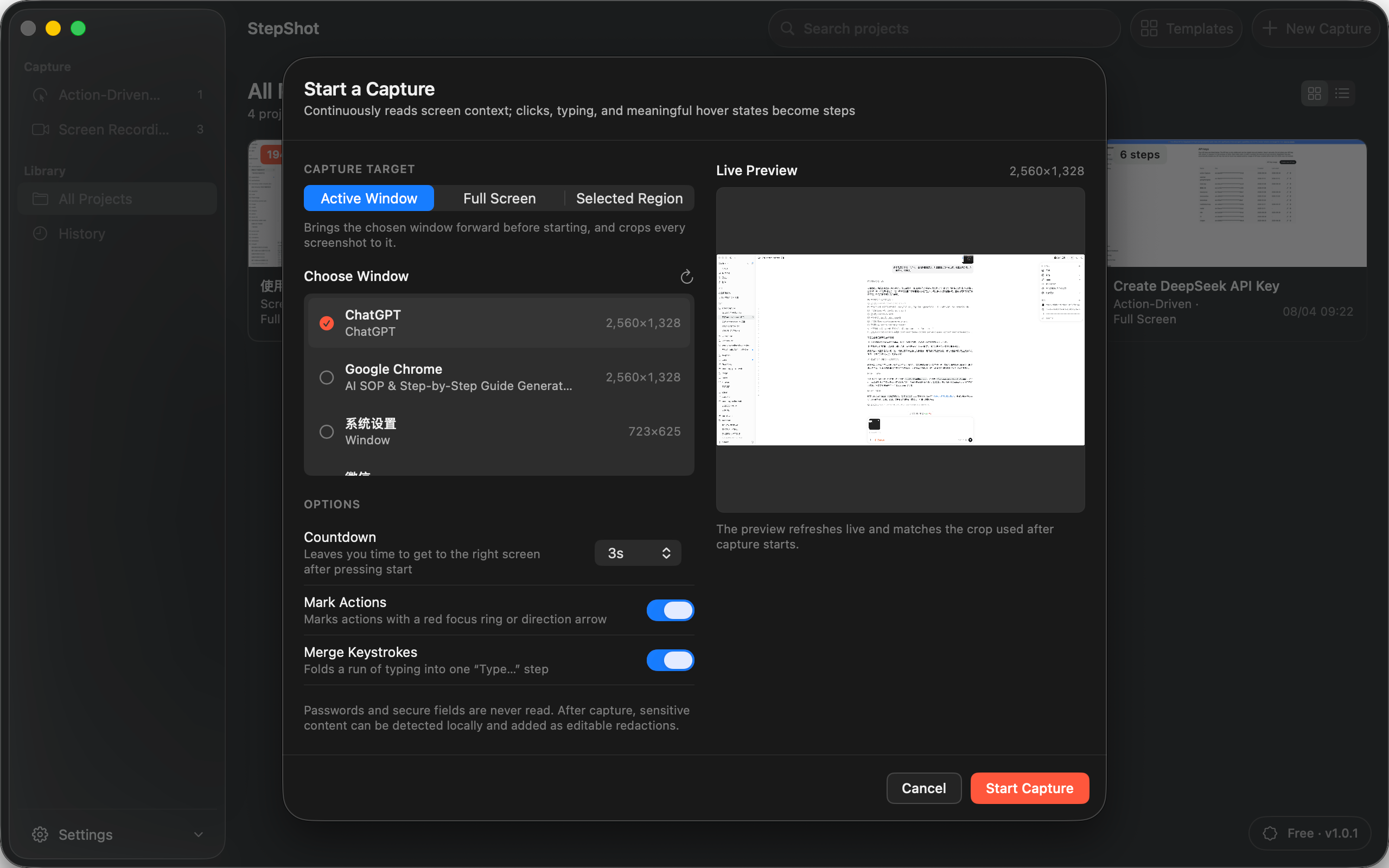
Choose a capture boundary before you begin
Decide what the tutorial actually needs to show. Capturing an active window keeps attention on one application. Full-screen capture can preserve context when the task moves between apps, while a selected region is useful when only one area of a large interface matters. The right boundary reduces later cropping and lowers the chance that unrelated information appears in the draft.
Also choose between action-driven capture and continuous recording. Action-driven capture suits procedures built around clicks and typed input. Recording is useful when menus, hover states or brief transitions make isolated events hard to preserve. The finished tutorial can still be a step-by-step document even when a recording supplied some of its source frames.
Turn the real run into an editable outline
Automatic capture should create a draft, not make final editorial decisions. Review the sequence and remove repeated or irrelevant actions. Merge steps that express one decision, split steps that contain two different outcomes, and insert headings or notes where a reader needs a prerequisite or explanation.
Write each title as an observable action. Explain why a choice matters only where the reader could reasonably choose the wrong option. This keeps the tutorial scannable while preserving the knowledge that a bare click path would omit. Numbered steps also give reviewers a precise place to request a correction.
Refine visual evidence without recapturing everything
Each image should make the intended control easy to find. Adjust framing, move a click marker, add a short annotation or replace an unclear screenshot. If the source is a recording, locate a better frame or create a missing step from the captured timeline instead of rerunning the entire task.
Inspect every frame for customer information, internal identifiers and other sensitive content. Local OCR can propose areas for redaction, but an author still needs to review the suggestions and confirm that the final pixels are safe to share. Privacy review is part of publishing, not a promise that automation can replace.
Test the tutorial in its final format
The delivery format changes how readers use the result. PDF gives training material a stable page layout. Markdown works well as editable source in repositories and many knowledge-base workflows. Self-contained HTML keeps text and images together in one file that can be opened without a hosted publishing system.
Export the actual tutorial and read it from the beginning. Check that screenshots remain legible, steps appear in the intended order, redactions are permanent and links work. Ask a reviewer who did not perform the capture to follow the instructions; unclear assumptions become visible when the tutorial leaves the author's screen.
How StepShot supports Mac tutorial creation
StepShot runs on macOS 14 and later and captures real workflows in action-driven or recording mode. Authors can target the active window, full screen or a selected region. Its local planner builds an editable draft, while the editor supports reordering, merging, notes, headings, framing, click markers, annotations and reviewed redaction.
Capture, editing and export run locally by default. Optional cloud planning uses a user-supplied OpenAI-compatible endpoint and sends text semantics by default; attaching up to four locally sanitized visual samples requires a separate, default-off consent. Finished tutorials can be exported as PDF, Markdown or self-contained HTML.
Review the complete StepShot feature set, follow the capture guide, or compare Free, Pro and Team export limits before creating your next Mac software tutorial.